How to use the editor
We build our templates with photoshop! We understand not everyone has a subscription to photoshop! We are so happy to annouce our integration with the photopea website! You can edit any template or graphic right in our editor above! Requires a desktop or laptop computer.
How does this work?
This application is made to work like and edit photoshop files known as PSD. Within a few clicks you will be able to edit any PSD template we have in our storefront. Just look for the photoshop icon.
- Download a template from our store (see all templates)
- Requires a desktop or laptop computer.
- Browse to your downloads folder and locate your file. We usually start the template name with PBG.
- Do a right click on the .zip folder and go to “Extract All”. A new folder should pop up with your template files.
- First, open the font.txt file. From there copy the link for each font and paste into an internet browser> after downloading the font file and installing it you will be ready to rock and roll with the psd file.
https://photoboothgraphics.com/2018/02/22/install-fonts-windows-pc/ - Now you are ready to edit the template! Click on File > Open > Find the templatename.psd file in the folder.
- You will find two layers in the layer pallet “—Hide Layers Above —” and “—Hide Layers Below —” make sure to turn these off first to ensure you do not have the sample lines and to make the template transparent for capture!
- Once you have finished editing your template save as a png! File > Export As > PNG.
Helpful Tips
- We like using blending options (AKA: FX or Layer Styles) for easy color changes. Color Overlays or Gradient Overlays is what is most commonly used.
- Hex or RGB codes is what you will need to find for your color choices. A simple Google search will help find your exact color code.
TEMPLATE KEY
Below is a key of our layer styles that we use in Photoshop.
Green = Editable item
Red = Important info and layers that can not be deleted.
Orange = Elements
Violet = Frames and Photo Placements
If you run into issues send an email Including the following: File names, software, and what your issue is. Email the file to [email protected].
Need us to Edit the Template for you?
Visit www.photoboothgraphics.com/order
If you require a background.jpg please download them here free: background.jpg
Turning off Layers
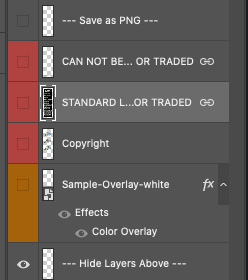
We have layers that need to be turned off before you can save out as a png. Use the “eyeball icon” on the left side of the layer to turn off or on the layers you need to use.
Layers to hide:
- At the top: Sample line, Copyright, Standard License, and Can Not be resold-gifted-or traded.
- At the bottom (below the base layer): Coordinates and Picture Placements (gray box with cameras)
Save as a png file. Our templates are used as “overlays” or aka “image mask”. See above section for more details.
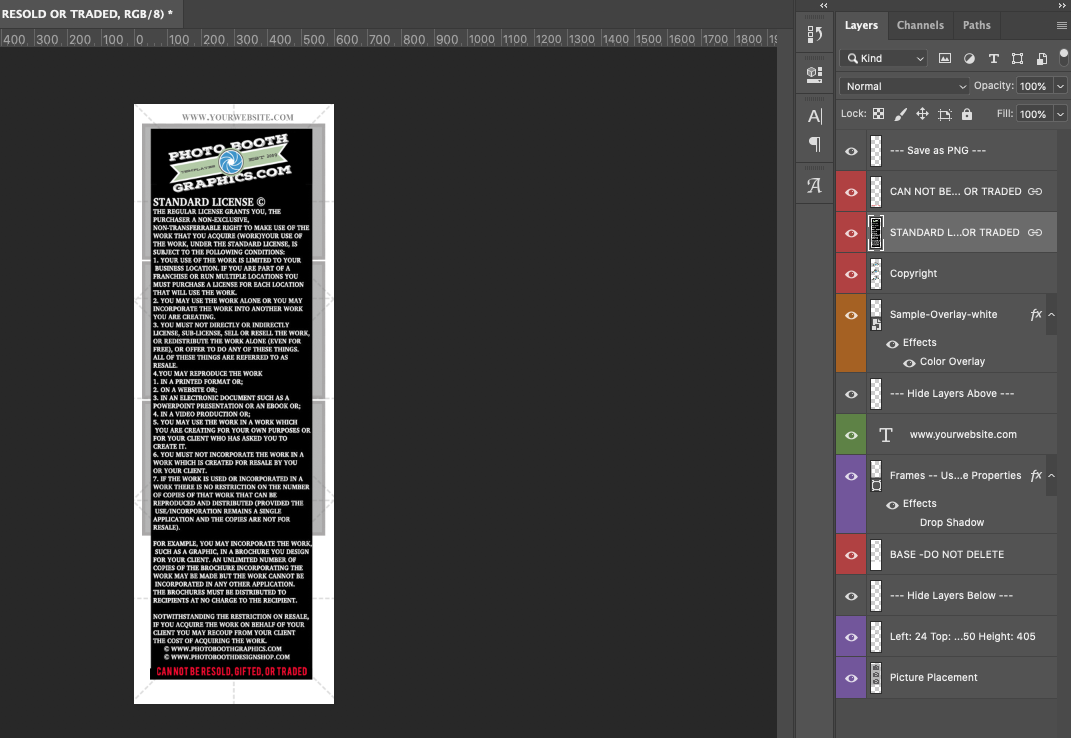
This is how your product will come before you get ready to prep your template.
This is how it looks when you have the layers turned off.
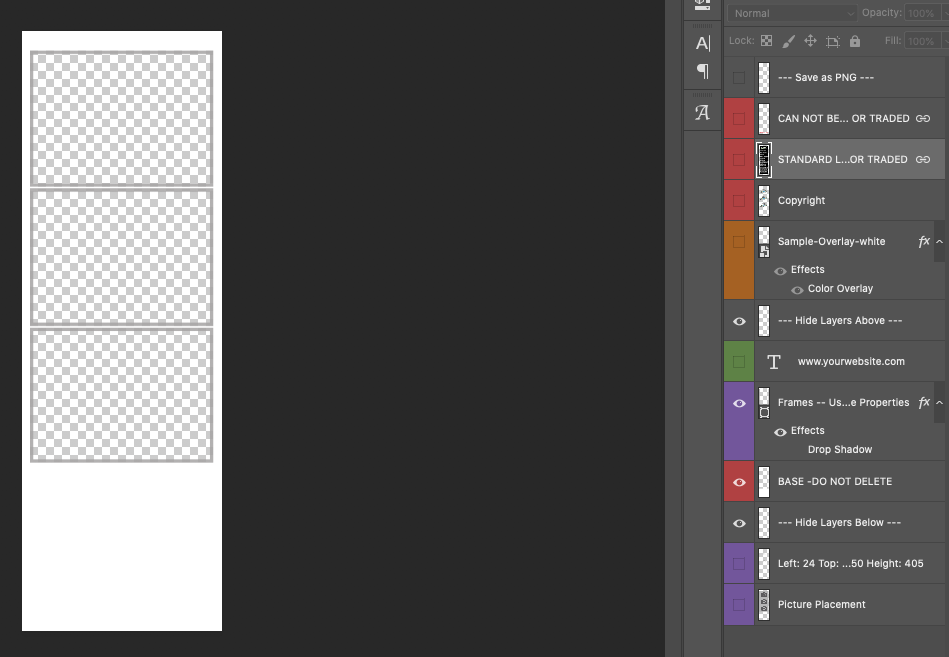
This is what your final product should look like when completed. Make sure you have checkered boxes for the transparency. Save as a PNG. If the file is too big use tinypng.com to compress.
Editing Templates
PREPPING YOUR TEMPLATE
Our templates are super easy to edit within photoshop or anything that will edit a psd. We do highly recommend Photoshop to be the only way to edit these.
After you download your template from our site follow these steps to prep your template to be edited.
- Browse to your downloads folder and locate your file. We usually start the template name with PBG- or MT-.
- Do a right click on the .zip folder and go to “Extract All” or “open”. A new folder should pop up with your template files.You can open zip files with any device. Follow these instructions: https://photoboothgraphics.com/unzip
- When you are in the folder you will see two text documents one will say help.txt and the other font.txt.
- Open font.txt. copy the link for each font and paste into an internet browser> after downloading the font file and installing it you will be ready to rock and roll with the psd file.
- We like using blending options (AKA: FX or Layer Styles) for easy color changes. Color Overlays or Gradient Overlays is what is most commonly used.
- Hex or RGB codes is what you will need to find for your color choices. A simple Google search will help find your exact color code.
If you run into issues send an email Including the following: File names, software, and what your issue is. Email the file to [email protected].
*All of our templates use photoshop to edit the layers & text items. We recommend the $10/mo Photography plan from www.photoshop.com
A free approved alternative that we support to photoshop is www.photopea.com.
If you require a background.jpg please download them here free: background.jpg
Adding your custom ordered file to Darkroom Booth.
- Download and save (Do NOT open) from your email onto your photo booth computer
- Open Darkroom Booth
- On the right side on the output page you will see “choose” click that
- You will see the template catalog at the top you will see a black bar click on “ADD”
- Browse to the “downloads” folder and you will see the preview of the template.
- Click on “add all” or “add selected“
- Find your template and choose in the catalog and have a great event!
Adding a static template to Touchpix
- Go to Touchpix.com
- Click on Login in the upper right corner
- Log in to your account
- Click on Designer in the top menu
- Click on Templates in the left bar
- Select the type of template you want to add, usually ‘slomo templates’
- Click on the template to add it to the canvas
- Click on Uploads in the left bar
- Click on Browse in the Custom overlay section
- Click on the file that appears in the left bar to add it to the canvas
- Select the event from the dropdown menu in the upper right corner
- Click on ‘Add template’ in the upper right corner
- Scan your QR Code and have a good event!
Free Downloads
Turning off Layers in Photoshop
We have layers that need to be turned off before you can save out as a png. Use the “eyeball icon” on the left side of the layer to turn off or on the layers you need to use.
Layers to hide:
- At the top: Sample line, Copyright, Standard License, and Can Not be resold-gifted-or traded.
- At the bottom (below the base): Coordinates and Picture Placements
Save as a png file. Our templates are used as “overlays” or aka “image mask”. See above section for more details.
This is how your product will come before you get ready to prep your template.
This is how it looks when you have the layers turned off.
This is what your final product should look like when completed. Make sure you have checkered boxes for the transparency. Save as a PNG. If the file is too big use tinypng.com to compress.
Editing Your Template in Photoshop
Editing Rustic Mason Jar Template.
Resizing a template